




























News


 电商部
电商部  2026-03-09 12:00:43
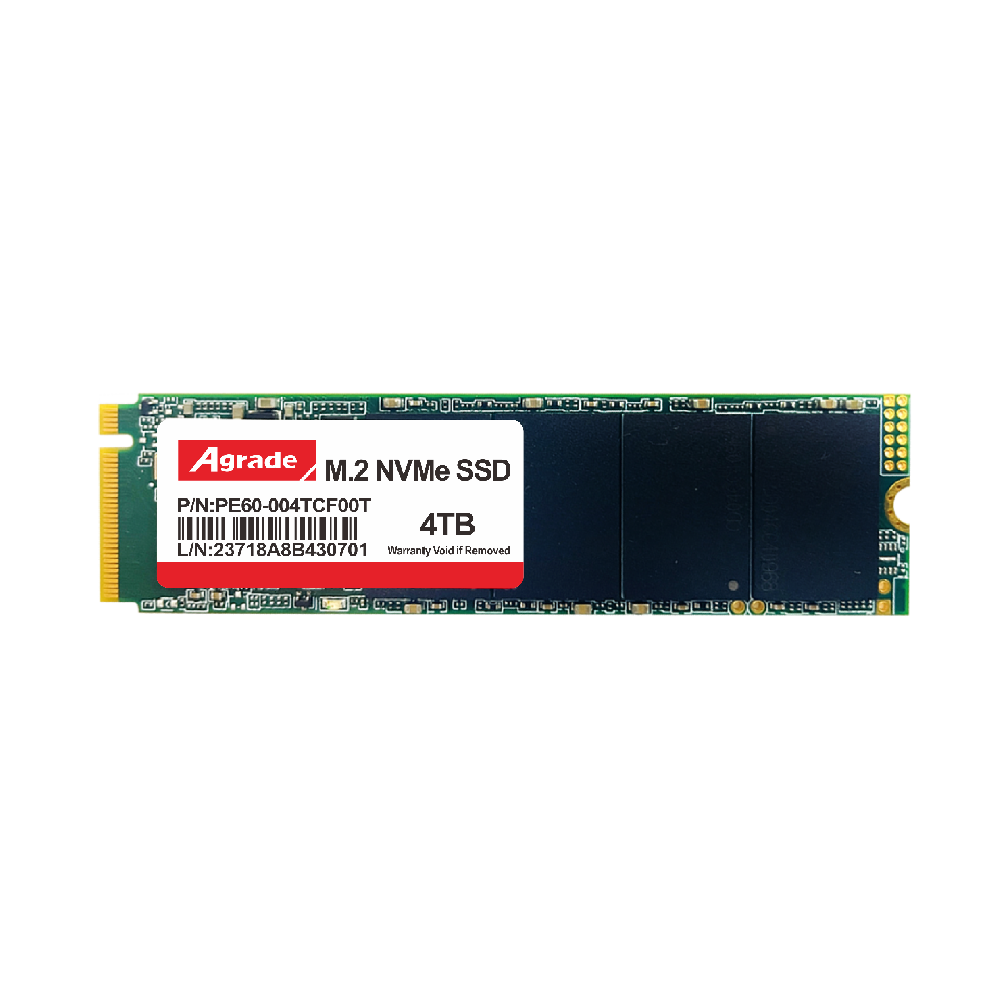
 Wide Temperature M.2 NVMe Firmware Update Guide: Safe Steps & Important Precautions
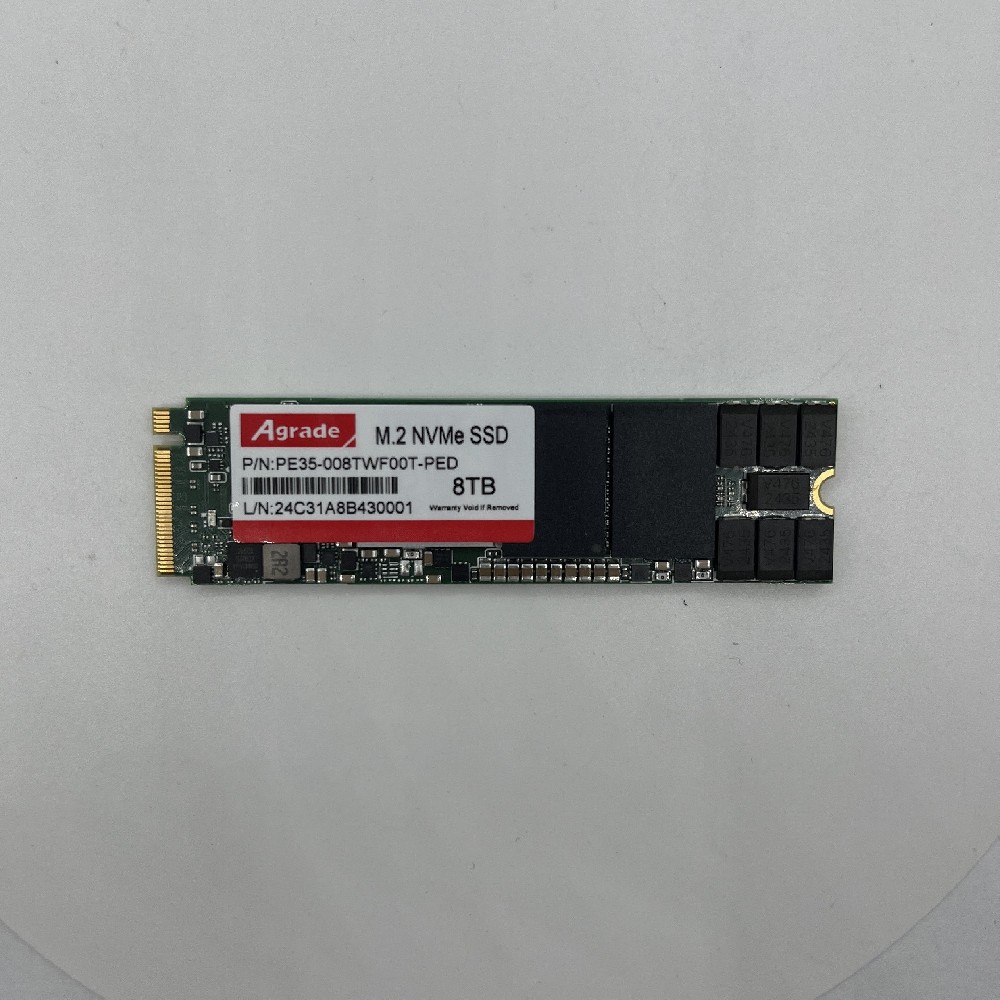
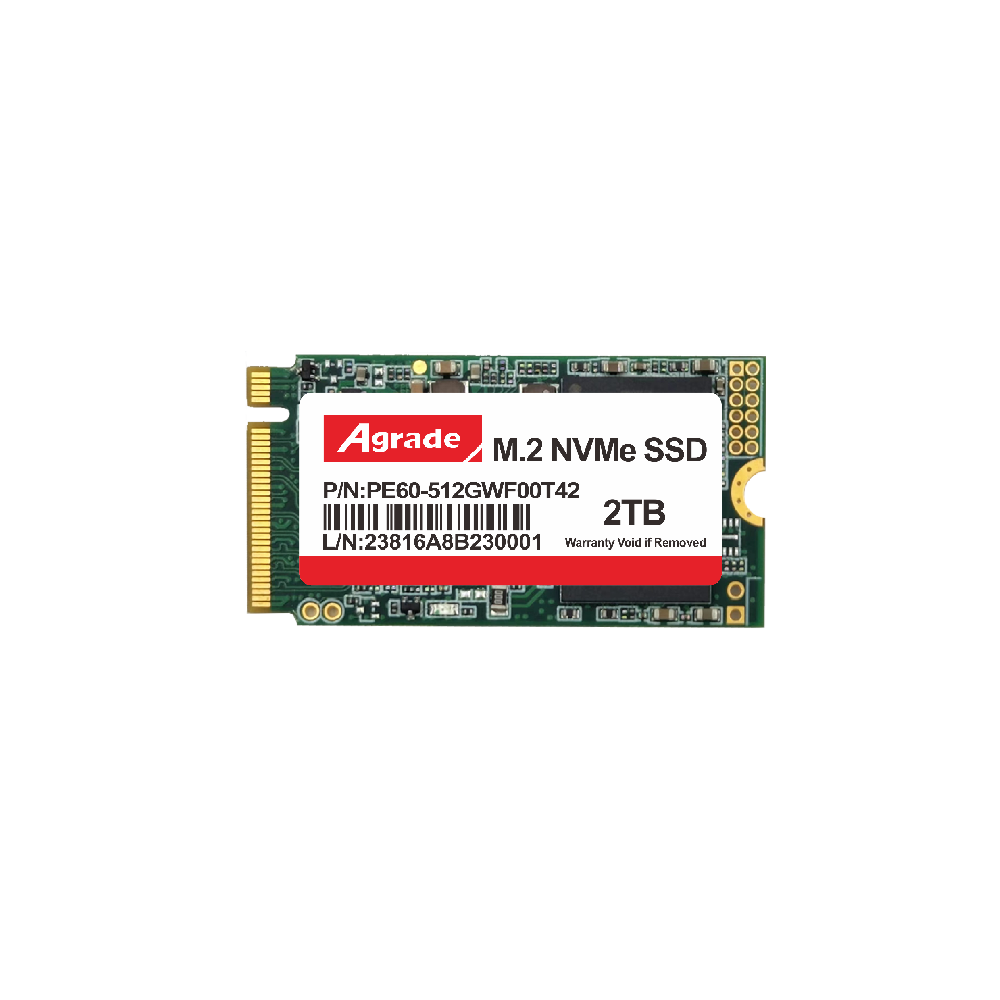
Firmware is the software that controls the operation of a Wide Temperature M.2 NVMe drive, and it plays a critical role in ensuring the drive’s performance, stability, and compatibility. Manufacturers regularly release firmware updates to address bugs, optimize temperature management, improve wear leveling, and enhance compatibility with new hardware and software. Updating the firmware of your Wide Temperature M.2 NVMe drive is a simple process, but it must be done carefully to avoid damaging the drive or losing data. In this article, we’ll provide a step-by-step guide to safely updating your drive’s firmware, as well as important precautions to keep in mind.
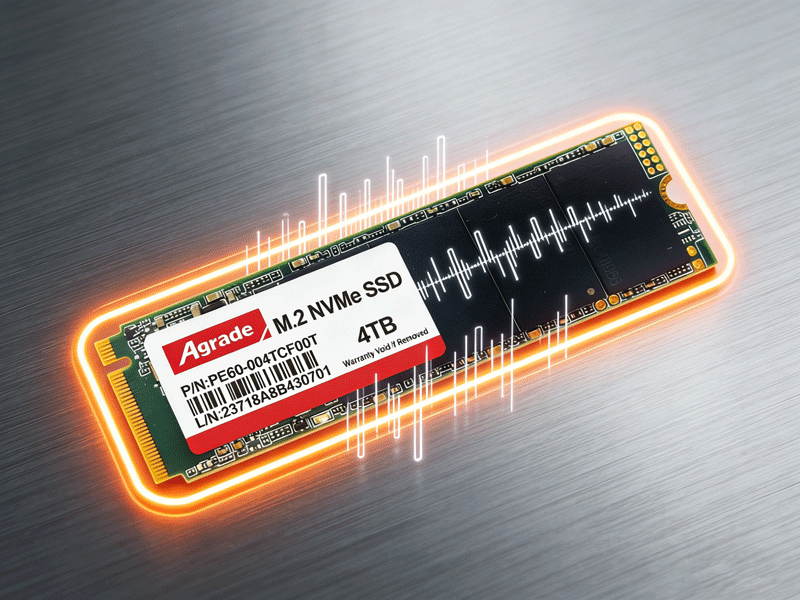
Step 1: Back Up Important Data. Before starting the firmware update, it’s essential to back up all important data stored on the Wide Temperature M.2 NVMe drive. Firmware updates involve rewriting the drive’s firmware, and if the update is interrupted (e.g., due to a power outage), it can cause data loss or render the drive unusable. To back up your data, connect an external storage device (e.g., an external SSD or USB drive) to your system and copy all important files to the external device. If the drive is installed in an industrial device or automotive system, consult the device’s manual to ensure that backing up data will not affect the device’s operation.
Step 2: Download the Correct Firmware. The next step is to download the correct firmware for your Wide Temperature M.2 NVMe drive. You can find the latest firmware on the manufacturer’s official website. It’s important to download the firmware that matches your drive’s model and serial number—using the wrong firmware can damage the drive. Most manufacturers provide a search tool on their website where you can enter the drive’s model number to find the correct firmware. Avoid downloading firmware from third-party websites, as it may be outdated, corrupted, or modified, which can cause issues during the update process.
Step 3: Prepare the Update Environment. Before starting the update, ensure that your system is in a stable environment. Connect your system to a reliable power supply—if possible, use a UPS to prevent power outages during the update. Close all unnecessary applications and processes to free up system resources, as this will ensure that the update process runs smoothly. If the drive is installed in an industrial device or automotive system, put the device in “maintenance mode” or “engineering mode” to prevent it from accessing the drive during the update. This will avoid interrupting the update process.
Step 4: Run the Firmware Update Tool. Most manufacturers provide a dedicated firmware update tool that simplifies the update process. Download and install the tool on your system, then launch it. The tool will automatically detect the Wide Temperature M.2 NVMe drive and display its current firmware version. Follow the tool’s on-screen instructions to start the update process. The update typically takes 1-3 minutes to complete, and the tool will display a progress bar to show the status of the update. Do not turn off your system or disconnect the drive during the update—this will cause the update to fail and may damage the drive.
Step 5: Verify the Update and Test the Drive. Once the update is complete, restart your system (or the industrial/automotive device). After restarting, launch the firmware update tool again to verify that the firmware version has been updated to the latest version. You can also use a storage testing tool (e.g., CrystalDiskInfo) to check the drive’s health and performance. Run a quick read/write test to ensure that the drive is operating normally. If you encounter any issues (e.g., the drive is not recognized, or performance is degraded), contact the manufacturer’s technical support for assistance. In some cases, you may need to roll back to the previous firmware version.
Important Precautions: Never interrupt the firmware update process, as this can render the drive unusable. Do not update the firmware if the drive is currently in use (e.g., recording video or processing data), as this can cause data loss. Only use firmware from the manufacturer’s official website. If you are unsure about how to update the firmware, consult the drive’s manual or contact the manufacturer’s technical support. Finally, do not update the firmware unless there is a specific reason to do so (e.g., to fix a bug or improve performance)—unnecessary updates can cause temporary issues.

-
Products
Advantages
-
Solutions
-
News
About us
-
Contact us
Tel:+86 19926658803
Whatsapp:+86 19926658803
lianle1210@163.com
Address: 30CF, Caihong Building, Caihong Road, Futian District, Shenzhen City, Guangdong Province, China



Friendly Links:
