































News


 电商部
电商部  2025-12-05 10:00:18
 How to Install NVMe M.2 SSD: Step-by-Step Guide for Optimal Performance
Installing an NVMe M.2 SSD is a straightforward upgrade that unlocks blistering speeds, but proper installation ensures you maximize performance and avoid common pitfalls. Whether you’re upgrading a desktop, laptop, or even a PS5, following these steps guarantees a smooth process—no advanced technical skills required. First, confirm compatibility: Your motherboard (manufactured 2016 or later) must have an M.2 slot supporting PCIe 3.0 or 4.0 (check the manual for “M.2 PCIe” or “NVMe” support; some older slots only work with SATA M.2 drives). Additionally, update your BIOS to the latest version (via the manufacturer’s website) to ensure the drive is recognized—outdated BIOS can cause detection issues or limit speed ³. Gather your tools: a small Phillips-head screwdriver (magnetic works best for tiny screws), a thermal pad (1-2mm thick), and a heatsink (critical for PCIe 4.0 drives, which generate significant heat under load). For laptops, opt for a slim heatsink or copper pad to fit tight spaces; desktops can use larger, aluminum heatsinks for better cooling ².
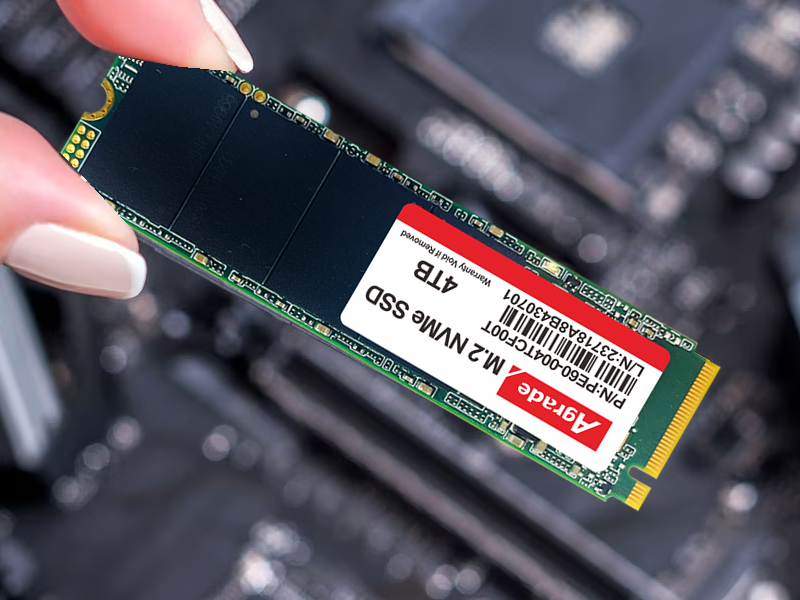
1.Prepare your system: Power off your PC/laptop and disconnect all cables (including the power supply for desktops). For desktops, open the case by removing side panels; for laptops, consult the manual to access the M.2 slot (some require removing the bottom cover). Ground yourself by touching a metal part of the case to avoid static electricity damaging the drive.
2.Locate and prepare the M.2 slot: The M.2 slot is a narrow, horizontal connector on the motherboard, usually labeled “M.2_1” (primary slot, offering full PCIe lanes) or “M.2_2” (secondary, which may share bandwidth with SATA ports or GPU). Remove the screw and standoff from the slot—note the standoff’s position (adjustable for different drive lengths: 2280 is the most common, meaning 22mm wide x 80mm long).
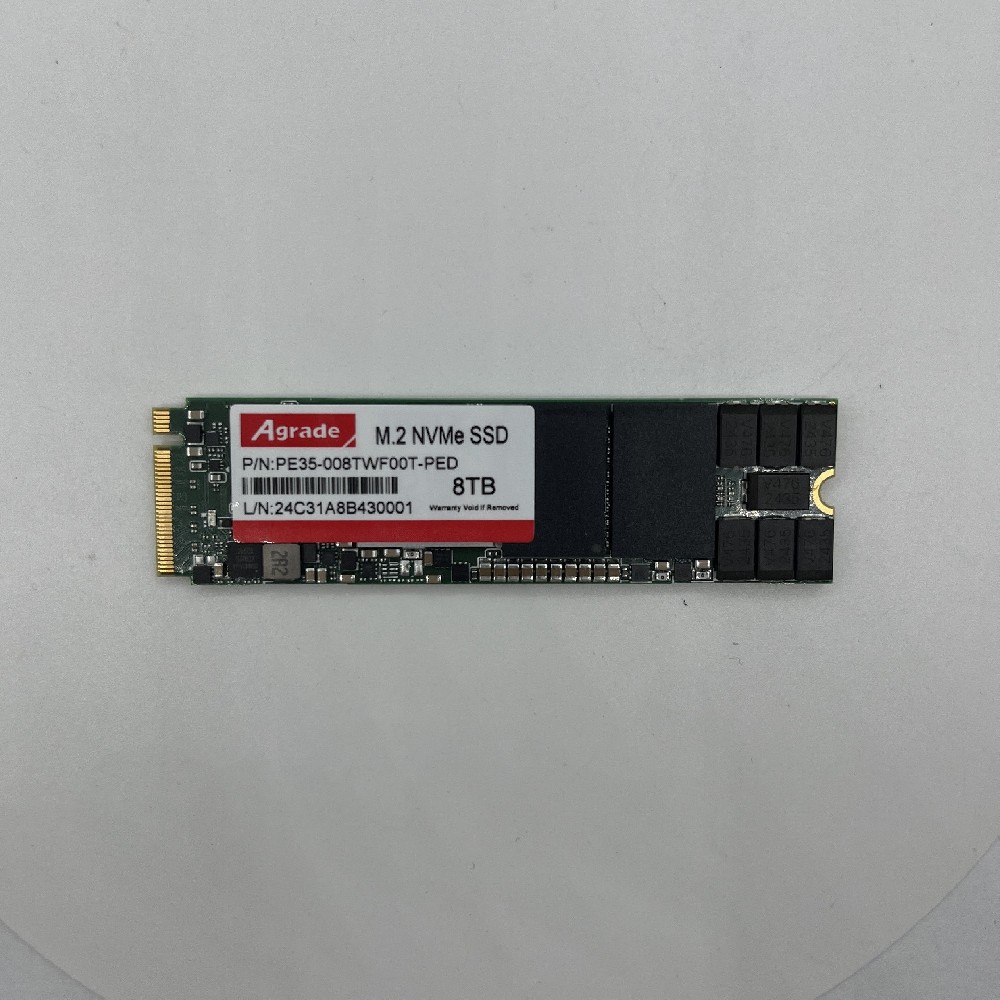
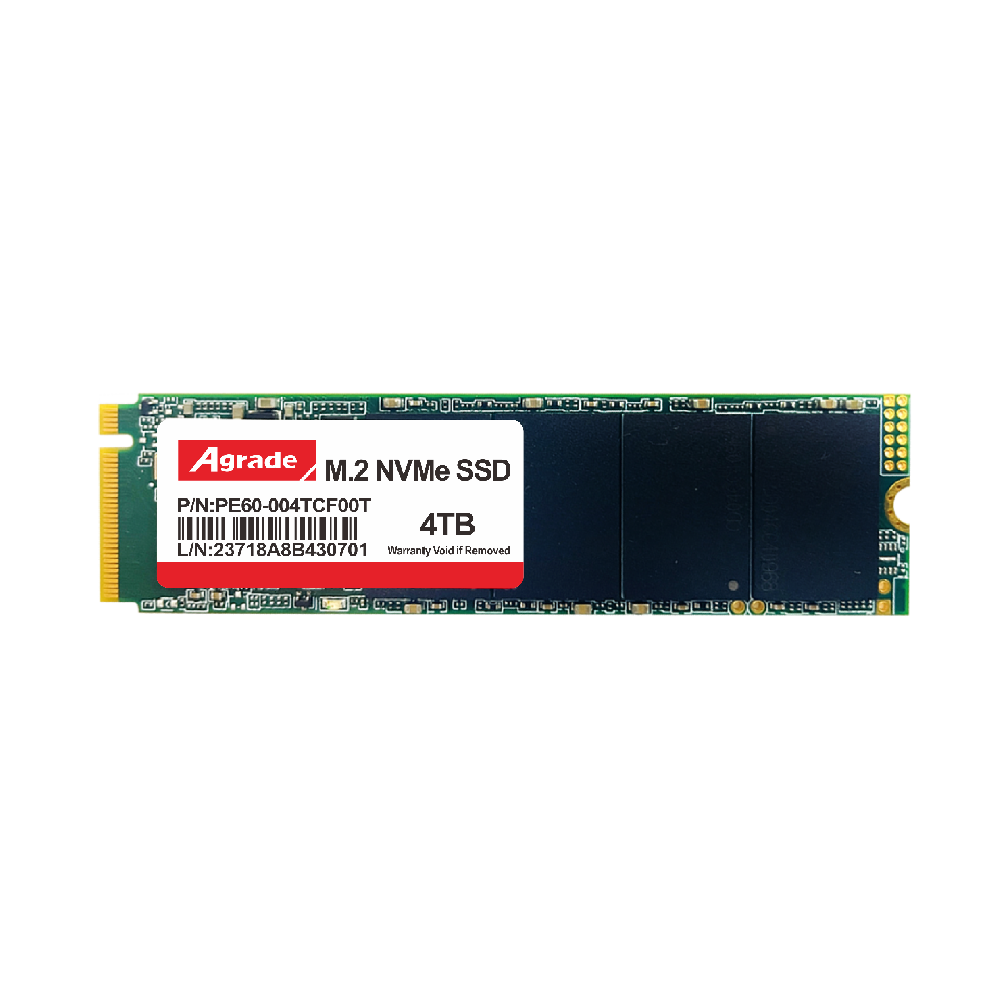
3.Install the SSD: Hold the NVMe M.2 SSD by its edges (avoid touching the gold pins or components) and insert it into the slot at a 30° angle, aligning the pins with the slot’s connector. Press the drive down firmly until it lies flat against the motherboard. Secure it with the screw—don’t overtighten, as this can damage the drive or motherboard.
4.Add cooling: Attach the thermal pad to the top of the SSD (covering the controller chip) and press the heatsink into place. For desktops with built-in M.2 heatsinks (common on high-end motherboards), ensure the thermal pad is properly aligned to transfer heat. Cooling is non-negotiable: PCIe 4.0 drives can reach 70°C+ under sustained use, throttling speeds to 800MB/s if uncooled ².
5.Configure BIOS and drivers: Reconnect all cables and power on your system. Enter BIOS by pressing the designated key (usually Del, F2, or F10) during boot. Navigate to the storage section to confirm the SSD is detected. Enable PCIe 4.0 (if supported) and set the NVMe drive as the primary boot device. Save changes and restart.
6.Optimize performance: Install the manufacturer’s software (e.g., Samsung Magician, Western Digital Dashboard) to update firmware, enable performance modes, and monitor drive health. Run a benchmark tool like CrystalDiskMark to verify speeds—expect sequential reads of 3500MB/s+ for PCIe 3.0 drives and 7000MB/s+ for PCIe 4.0 models ³. If speeds are lower than advertised, check if the drive is in the primary M.2 slot (secondary slots may limit PCIe lanes) or if SATA ports are disabled (some motherboards toggle this when M.2 is used ²).
Pro tips: For PS5 installations, use a drive with a built-in heatsink (like the Sabrent Rocket 4 Plus) to meet Sony’s cooling requirements. For laptops, avoid thick heatsinks that may interfere with the case closure—thin thermal pads or low-profile heatsinks work best. If you’re cloning your old drive to the new NVMe SSD, use software like Macrium Reflect or Samsung Data Migration to transfer files and operating systems without reinstalling. With proper installation, your NVMe M.2 SSD will deliver consistent, high-speed performance for years to come.

-
Products
Advantages
-
Solutions
-
News
About us
-
Contact us
Tel:+86 19926658803
Whatsapp:+86 19926658803
lianle1210@163.com
Address: 30CF, Caihong Building, Caihong Road, Futian District, Shenzhen City, Guangdong Province, China



Friendly Links:
