




















News


 电商部
电商部  2026-01-14 15:28:29
 Laptop Dual-Channel Memory: How It Works and How to Set It Up
Dual-channel memory is a technology that boosts laptop performance by doubling the memory bandwidth, allowing faster data transfer between the memory and the processor. Unlike single-channel memory (which uses one data path), dual-channel uses two parallel paths, significantly improving multitasking, gaming, and resource-intensive application performance. However, setting up dual-channel memory requires specific hardware and configuration, and not all laptops support this feature.
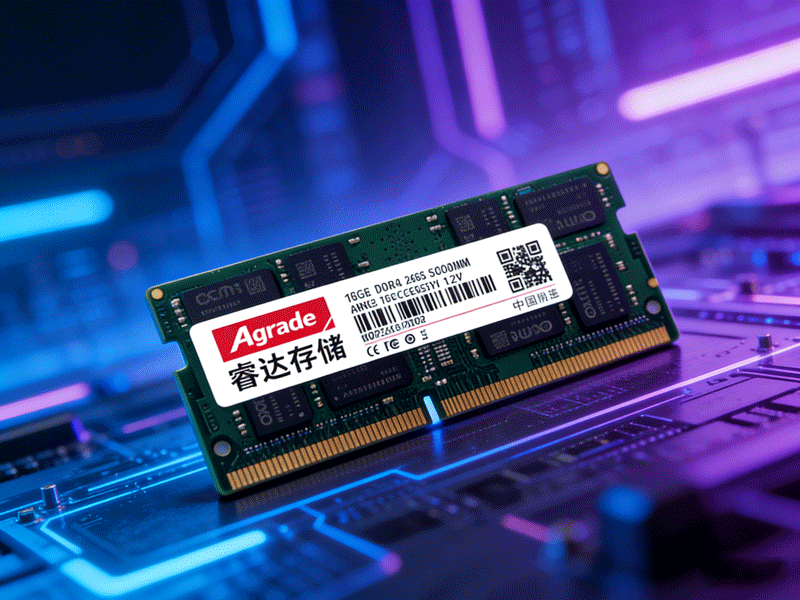
The core principle of dual-channel memory is parallel data transmission. A single-channel 16GB DDR4-3200 module offers a bandwidth of 25.6 GB/s, while two 8GB DDR4-3200 modules in dual-channel mode deliver 51.2 GB/s. This speed increase is most noticeable in tasks that require large amounts of data to be processed simultaneously, such as running multiple browser tabs, editing 4K videos, or playing graphically demanding games. Laptops with integrated graphics benefit even more, as integrated GPUs use system memory as VRAM— faster bandwidth improves frame rates and rendering speed.
To set up dual-channel memory, your laptop must have at least two memory slots— many thin-and-light laptops and ultrabooks have only one slot or soldered memory (non-upgradable), so check your laptop’s specifications first. The ideal configuration is two identical modules: same brand, capacity, frequency, rank, and chip type. This ensures optimal compatibility and performance, as the motherboard can sync the modules’ timings and frequencies.
If identical modules are unavailable, you can use modules of different brands but the same generation and frequency. However, this may result in “flexible dual-channel” mode, where the system uses the smaller module’s capacity in dual-channel and the remaining capacity in single-channel. For example, a 4GB and 8GB module will run 4GB in dual-channel and 4GB in single-channel— still better than single-channel but less efficient than symmetric dual-channel.
After installing the modules, verify if dual-channel is enabled. On Windows, use CPU-Z: go to the “Memory” tab, and check the “Channel #” field (it should show “Dual”). On macOS, use the “About This Mac” > “System Report” > “Memory” to view channel mode. If dual-channel is not detected, recheck the module installation (ensure they are fully seated in the slots) or try swapping the modules’ positions. In rare cases, a motherboard firmware update may be required to enable dual-channel support.

-
Products
Advantages
-
Solutions
-
News
About us
-
Contact us
Tel:+86 19926658803
Whatsapp:+86 19926658803
lianle1210@163.com
Address: 30CF, Caihong Building, Caihong Road, Futian District, Shenzhen City, Guangdong Province, China



Friendly Links:
