































News


 电商部
电商部  2025-12-24 15:40:23
 How to Install and Optimize a PCIe SSD for Maximum Performance
Buying a fast PCIe SSD is only half the battle—proper installation and optimization are key to unlocking its full potential. Whether you’re upgrading a desktop, laptop, or even a PS5, follow these steps to ensure your PCIe SSD runs at peak performance.
First, prepare for installation. For desktops: power off the PC, unplug the power cord, and ground yourself to avoid static electricity (use an anti-static wristband or touch a metal part of the case). Locate the M.2 slot on your motherboard (check the manual if unsure) and remove any existing drive or heat sink. For laptops: ensure your laptop supports M.2 NVMe drives (check the manufacturer’s specs) and has an empty M.2 slot—some slim laptops may not have upgradeable storage. You’ll need a small Phillips-head screwdriver for both.

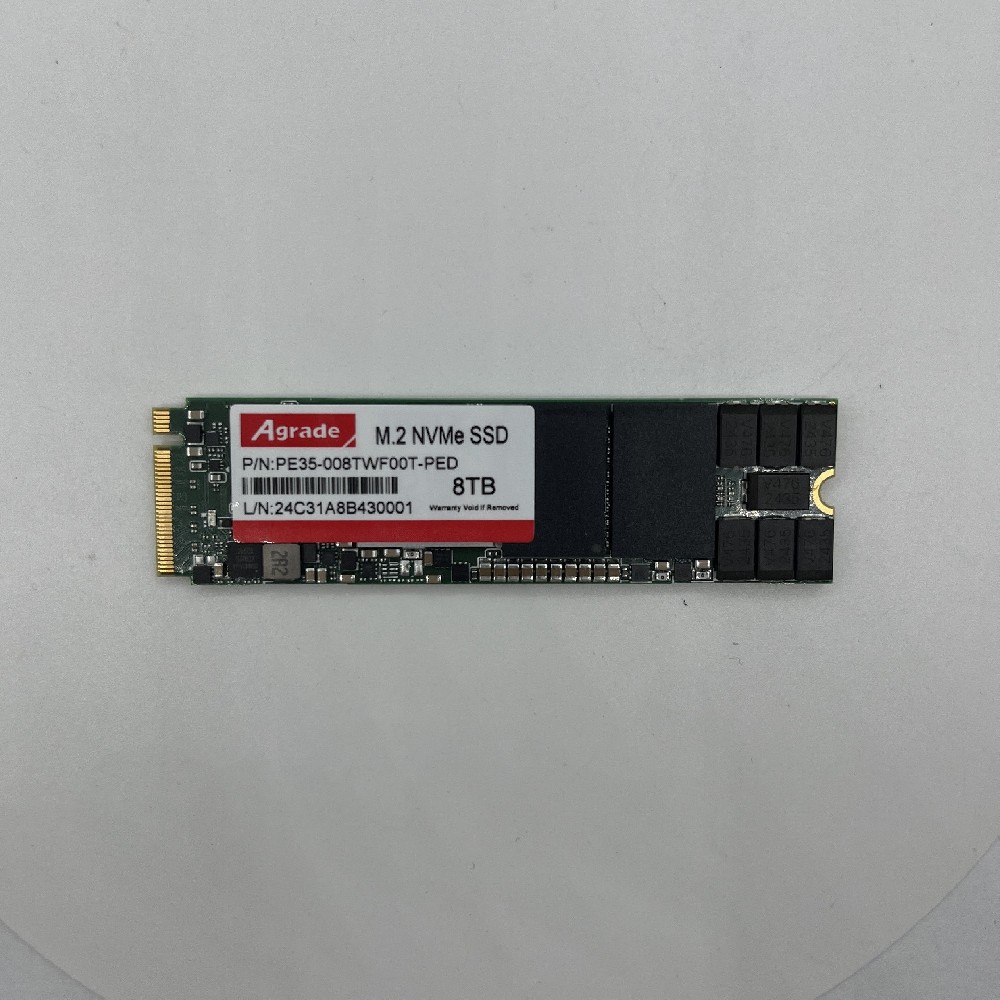
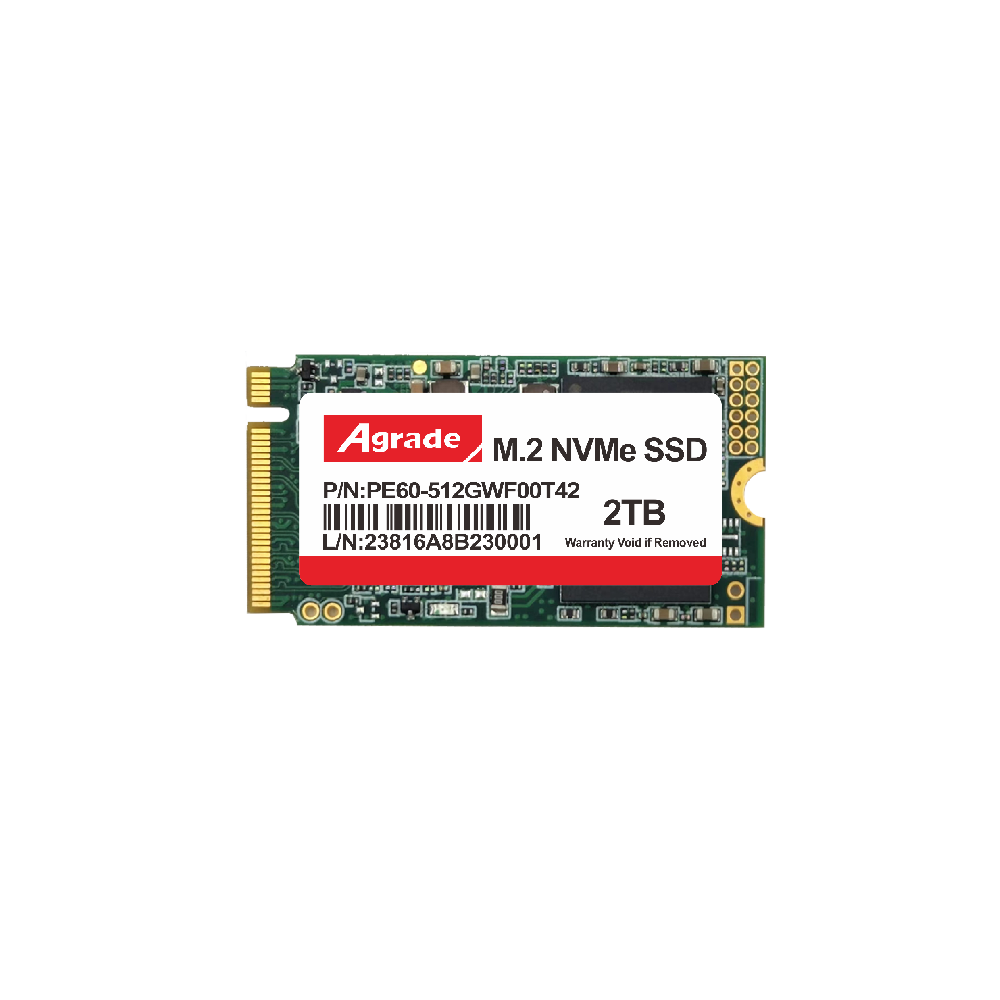
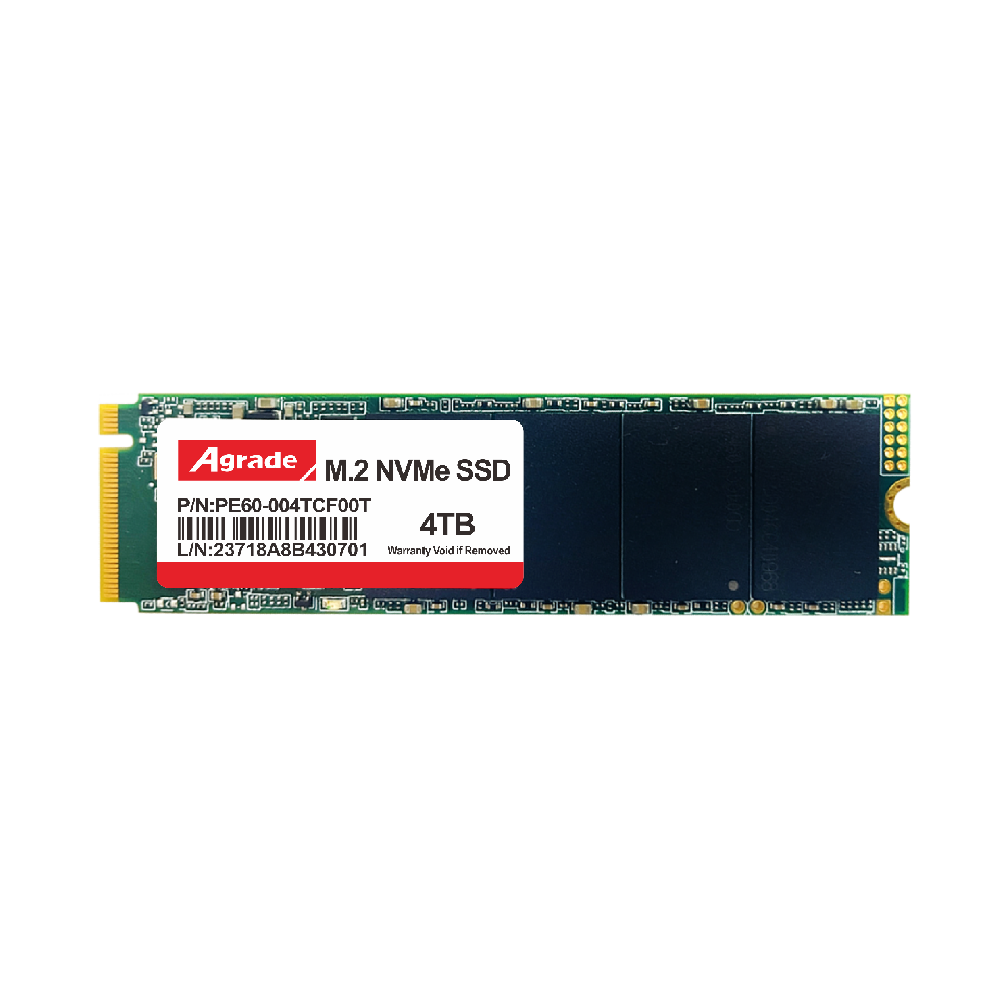
Installation is straightforward: align the PCIe SSD’s gold contacts with the M.2 slot, insert it at a 30-degree angle, then secure it with the provided screw. If your drive or motherboard has a heat sink, attach it before powering on—this prevents overheating and throttling. For PCIe expansion card SSDs (less common), insert the card into an available PCIe x4 or x8 slot and secure it with a case screw.
Once installed, boot into Windows. If you’re using the SSD as a secondary drive, open Disk Management, initialize it (GPT is recommended for modern systems), create a volume, and format it with NTFS (Windows) or exFAT (cross-platform). If you’re migrating your OS to the PCIe SSD (highly recommended for faster boot times), use cloning software like Macrium Reflect or Samsung Data Migration (for Samsung drives). Follow the software’s instructions to copy your OS and files—this ensures a seamless transition without reinstalling Windows.
Now, optimize for performance. First, enable NVMe in BIOS/UEFI: enter BIOS (press Del, F2, or F12 during boot), navigate to Storage settings, and ensure NVMe mode is enabled (not SATA). Next, update the SSD’s firmware: visit the manufacturer’s website (Samsung, Western Digital, etc.), download the firmware update tool, and follow the steps—firmware updates often fix bugs and improve speed/stability.
Disable power-saving features that limit performance: in Windows, go to Device Manager > Disk drives, right-click your PCIe SSD, select Properties > Power Management, and uncheck “Allow the computer to turn off this device to save power.” For gamers, enable Game Mode in Windows (Settings > Gaming > Game Mode) and use the drive’s dedicated software (like Western Digital Dashboard) to enable game-specific optimizations (e.g., Game Mode 2.0 on the SN850X).
Monitor temperature and performance with tools like CrystalDiskInfo (temperature) and CrystalDiskMark (speed tests). If temperatures exceed 70°C during heavy use, add a better heat sink or improve case airflow. Finally, avoid filling the SSD to capacity—leave 10-20% free space to maintain optimal performance, as SSDs slow down when full. By following these steps, you’ll install your PCIe SSD correctly and optimize it to deliver the fast boot times, quick load speeds, and smooth performance you paid for.

-
Products
Advantages
-
Solutions
-
News
About us
-
Contact us
Tel:+86 19926658803
Whatsapp:+86 19926658803
lianle1210@163.com
Address: 30CF, Caihong Building, Caihong Road, Futian District, Shenzhen City, Guangdong Province, China



Friendly Links:
