

















News


 电商部
电商部  2025-12-24 15:40:53
 Common PCIe SSD Problems and How to Fix Them in 2025
PCIe SSDs are fast and reliable, but they can still encounter issues—from slow speeds to overheating. Knowing how to diagnose and fix these common problems will save you time and frustration.
Let’s start with the most frequent issue: slow performance or throttling. If your PCIe SSD isn’t hitting its advertised speeds, overheating is likely the culprit. High-speed PCIe 4.0/5.0 drives generate significant heat, and most motherboards’ built-in heat sinks are insufficient for heavy loads. To fix this: check the drive’s temperature with CrystalDiskInfo (normal temps are 30-60°C; above 70°C is problematic). If overheating, add an aftermarket heat sink, graphene cooling pad, or improve case airflow (clean dust filters, add fans). For laptops, use a cooling pad to reduce overall system temperature.
Another cause of slow speeds is a mismatched PCIe version—if your motherboard is PCIe 3.0, a PCIe 4.0 SSD will throttle to 3.0 speeds. Verify your motherboard’s PCIe version in the manual; if mismatched, either upgrade the motherboard or use a compatible SSD.
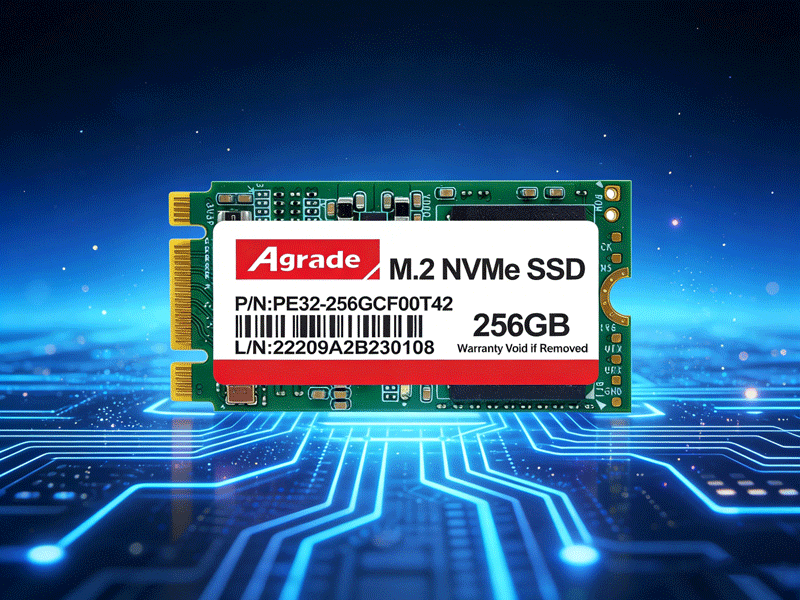
Next, sudden speed drops during large transfers. This usually happens when the SSD’s SLC cache is full, especially with QLC or low-end TLC drives. To mitigate: avoid QLC drives for active use; choose high-end TLC drives with larger SLC caches. If you already have such a drive, split large file transfers into smaller chunks (e.g., 10GB instead of 50GB) to prevent cache exhaustion.
Another common problem: SSD not detected by the system. First, check physical installation—ensure the drive is fully inserted into the M.2 slot and secured with the screw. If using a PCIe expansion card, verify the card is properly seated in the PCIe slot. Next, check BIOS/UEFI: enter BIOS, navigate to Storage settings, and ensure the drive is recognized. If not, update your BIOS to the latest version (manufacturer’s website) to fix compatibility issues. For Windows users, open Disk Management—if the drive is listed as “Unallocated,” initialize it (GPT) and create a volume.
Data loss or corruption is rare but scary. To fix: use Windows’ built-in Error Checking tool (right-click drive > Properties > Tools > Check) to scan for and repair file system errors. For more serious issues, use the manufacturer’s diagnostic tool (e.g., Samsung Magician, Western Digital Dashboard) to check the drive’s health and run repairs. Always back up important data to an external drive or cloud storage to prevent loss.
Finally, short lifespan or high write wear. This is common with QLC drives or drives used for constant data transfer (e.g., servers). To fix: replace with a TLC drive with a high TBW rating (600+ TBW for 1TB). Use software to limit unnecessary write operations (e.g., disable hibernation, move temp files to a different drive). By addressing these common problems—overheating, mismatched PCIe versions, cache exhaustion, detection issues, data corruption, and wear—you can keep your PCIe SSD running smoothly and extend its lifespan. If problems persist, contact the manufacturer’s support (especially if the drive is under warranty) for further assistance.

-
Products
Advantages
-
Solutions
-
News
About us
-
Contact us
Tel:+86 19926658803
Whatsapp:+86 19926658803
lianle1210@163.com
Address: 30CF, Caihong Building, Caihong Road, Futian District, Shenzhen City, Guangdong Province, China



Friendly Links:
