









News


 电商部
电商部  2026-01-14 15:29:56
 How to Fix Oxidized Laptop Memory Module Gold Contacts
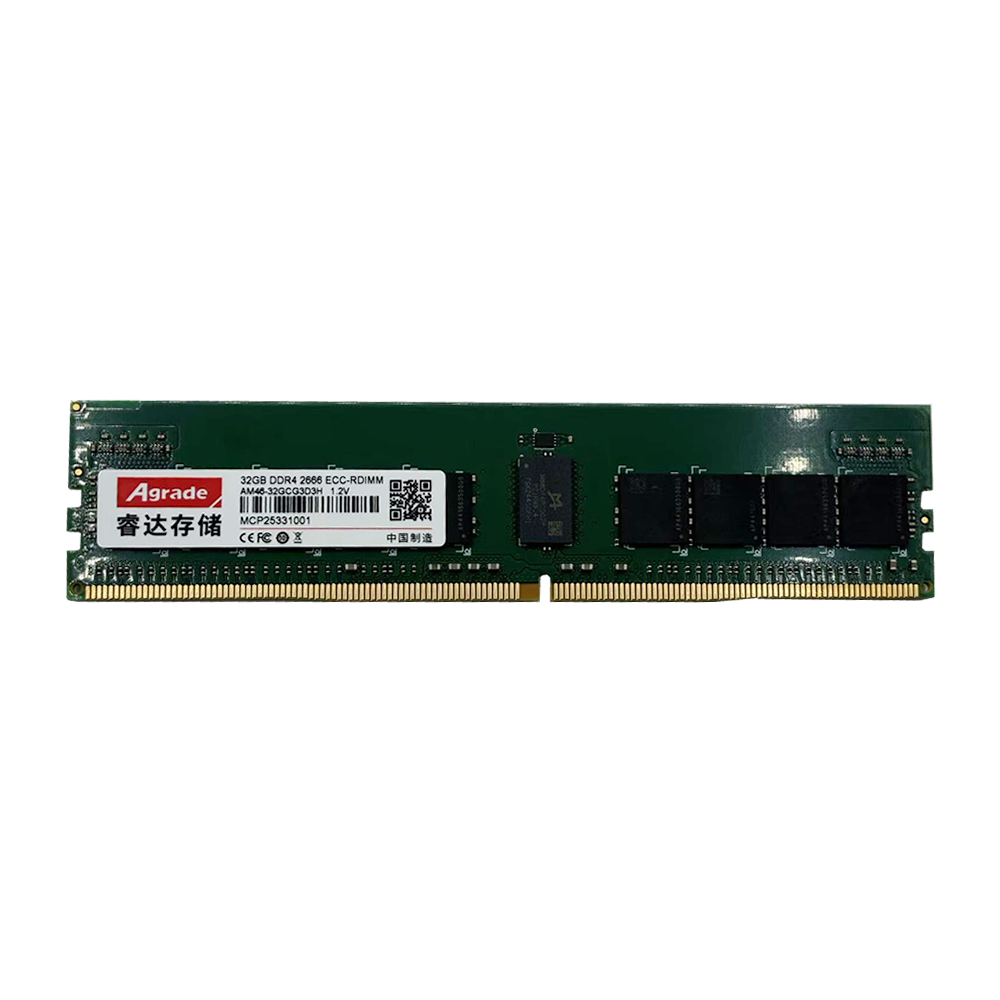
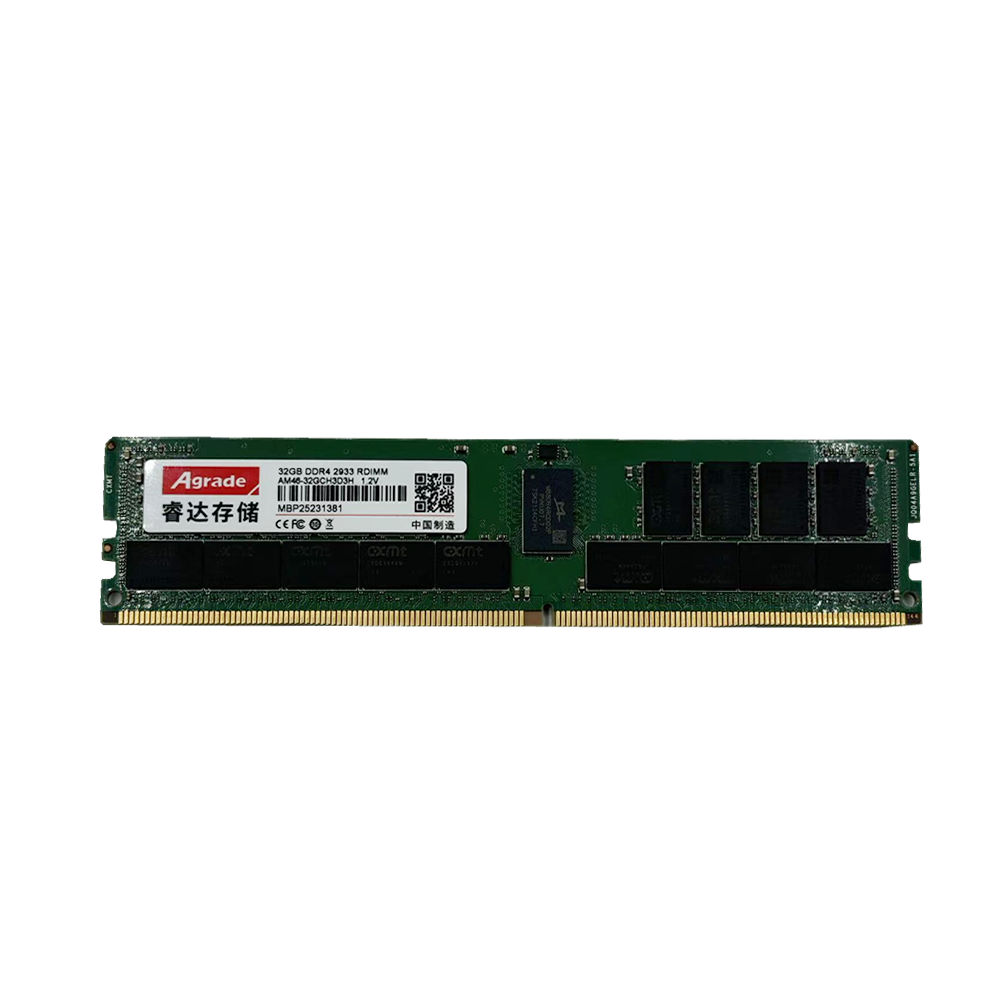
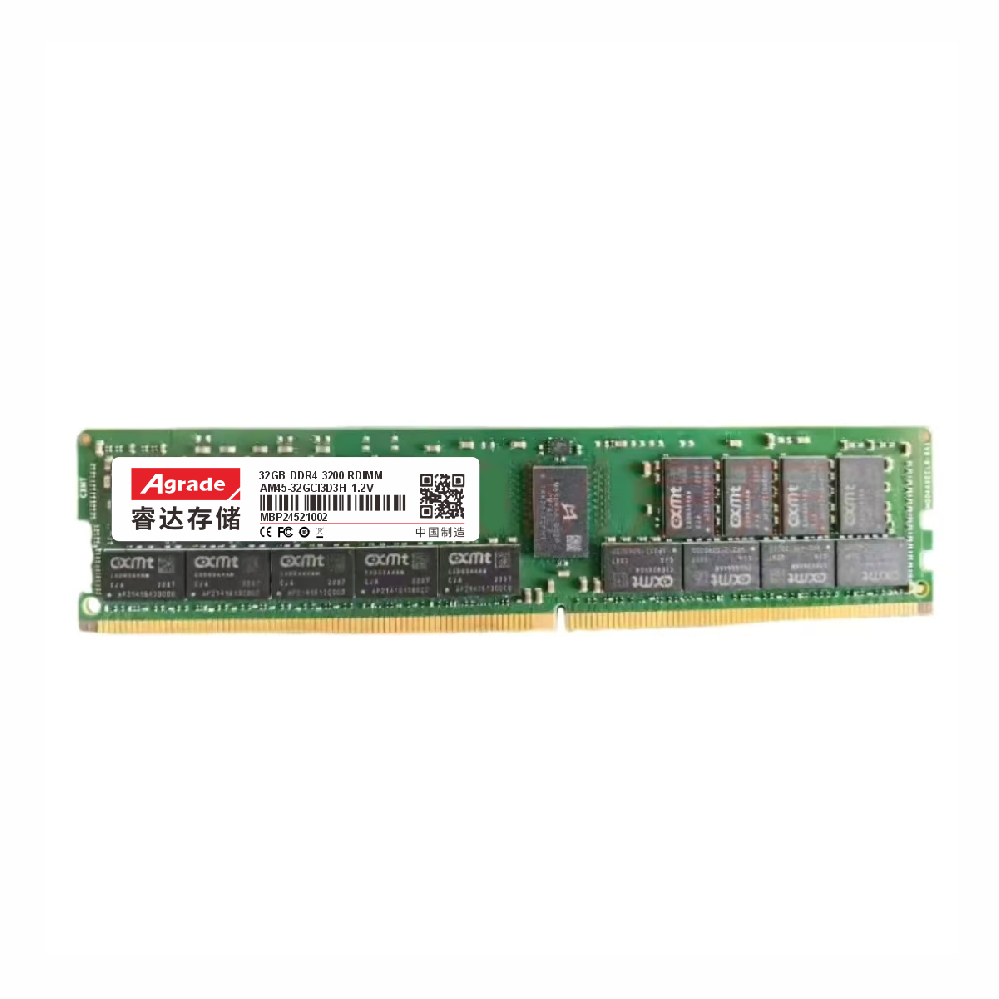
Oxidation on laptop memory module gold contacts is a common issue, especially in humid environments or with older modules. Gold contacts are used for their conductivity and corrosion resistance, but over time, exposure to moisture, dust, and static can cause a thin oxide layer to form. This layer disrupts electrical contact between the module and the motherboard, leading to symptoms like boot failures, blue screens, and random crashes. The good news is that oxidized contacts can be cleaned with simple tools, restoring the module’s functionality.
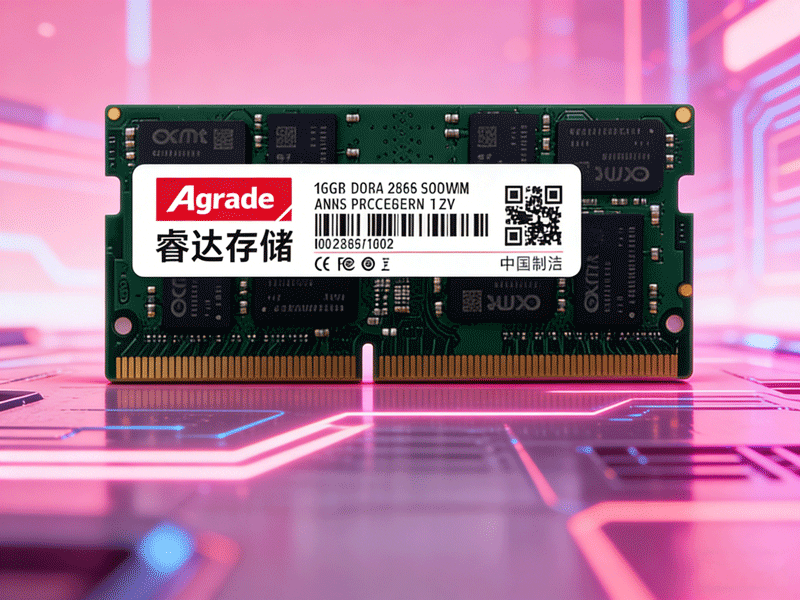
Before starting, gather the necessary tools: a clean white eraser (avoid colored or scented erasers, which contain oils), 95% isopropyl alcohol (not rubbing alcohol, which has water), lint-free棉签 (Q-tips), a soft brush (e.g., a toothbrush), and an anti-static wristband (optional but recommended to prevent static damage).
Start by preparing the laptop: power it off completely, disconnect the power adapter, and remove the battery (if removable). For non-removable batteries, press and hold the power button for 10 seconds to discharge residual electricity. Put on the anti-static wristband (or touch a metal part of the laptop chassis) to eliminate static charge, which can damage sensitive memory chips.
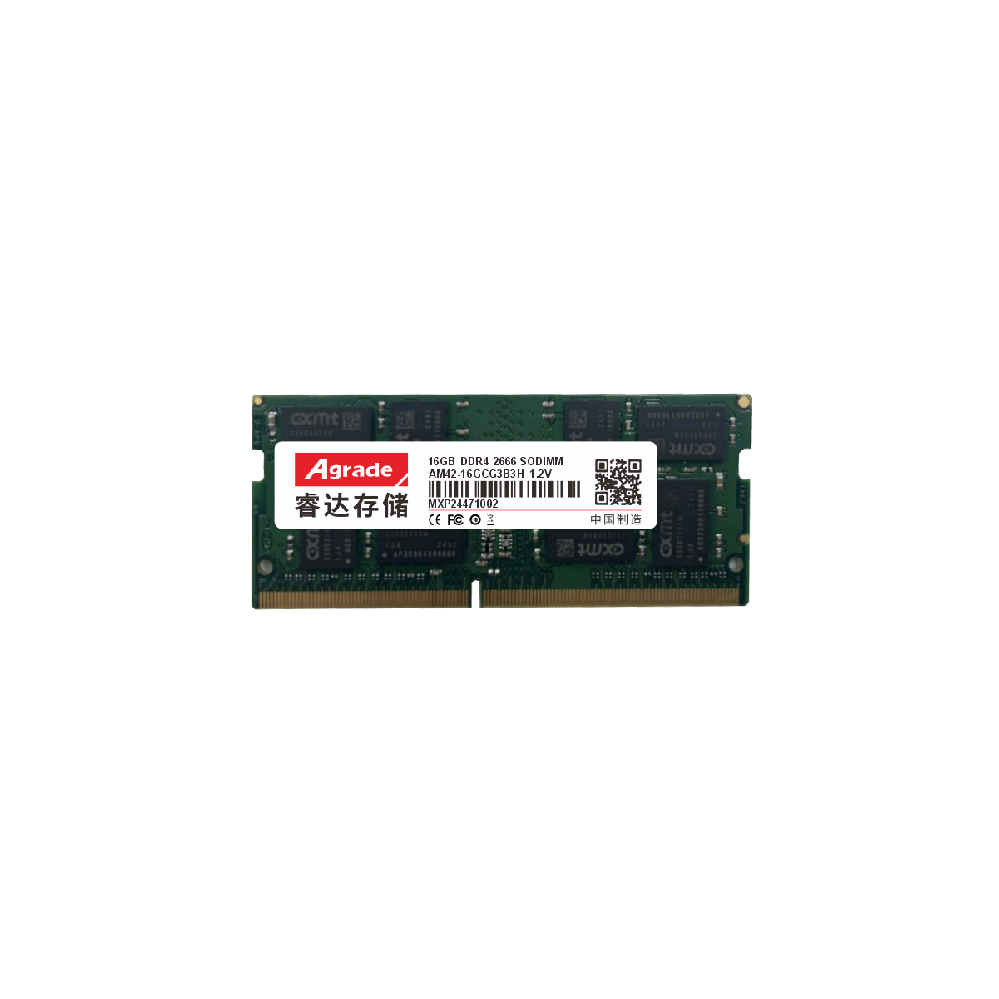
Remove the memory module: locate the memory slots under the laptop’s bottom cover (some laptops require removing the keyboard). Push the clips on either side of the module outward— the module will pop up at a 45-degree angle. Gently pull the module out by its edges (avoid touching the gold contacts or chips).
Clean the contacts: hold the module by its edges and use the eraser to gently rub the gold contacts in one direction (avoid back-and-forth rubbing, which can scratch the contacts). Continue until the contacts are bright and free of discoloration. Use the soft brush to remove eraser debris from the contacts and PCB.
For stubborn oxidation, dampen a lint-free棉签 with isopropyl alcohol and gently wipe the contacts. Alcohol evaporates quickly, leaving no residue, and dissolves remaining oxide and oil. Allow the module to air dry for 5-10 minutes (ensure no alcohol remains before reinstallation). Reinsert the module: align the notch on the module with the notch in the slot, insert it at a 45-degree angle, and press down until the clips lock into place. Replace the bottom cover, battery, and power adapter, then power on the laptop to test functionality.

-
Products
Advantages
-
Solutions
-
News
About us
-
Contact us
Tel:+86 19926658803
Whatsapp:+86 19926658803
lianle1210@163.com
Address: 30CF, Caihong Building, Caihong Road, Futian District, Shenzhen City, Guangdong Province, China



Friendly Links:
