











News


 电商部
电商部  2026-01-14 15:31:14
 Laptop Memory Module Overclocking: Feasibility, Risks, and Step-by-Step Guide
Overclocking a laptop memory module involves increasing its frequency and optimizing latency timings to boost performance. While common in desktop systems, laptop memory overclocking is more limited due to hardware constraints, but it can still provide noticeable improvements in gaming and resource-intensive tasks. However, overclocking carries risks, including reduced component lifespan, overheating, and voided warranties. This guide covers the feasibility, risks, and steps to safely overclock laptop memory modules.
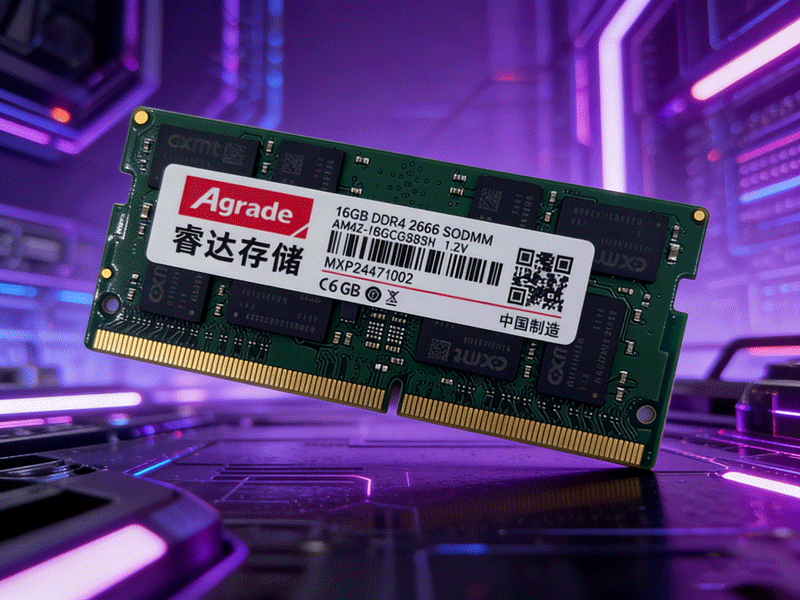
First, determine if your laptop supports memory overclocking. Most thin-and-light laptops and ultrabooks have locked BIOS settings and weak cooling systems, making overclocking impossible or unsafe. Gaming laptops and high-end workstations (e.g., ASUS ROG, MSI GT Series) are the best candidates— they have unlocked BIOS, robust cooling, and motherboards with reinforced power delivery. Additionally, the memory module’s chip quality matters: original chips (Samsung B-Die, SK Hynix CJR) have better overclocking potential than white or black chips.
The primary risks of overclocking include overheating, system instability, and voided warranties. Increasing frequency raises power consumption and heat generation; if the laptop’s cooling system cannot dissipate the extra heat, the module may throttle performance or fail. Instability can manifest as blue screens, crashes, or data corruption. Most laptop manufacturers void warranties for overclocking-related damage, so proceed with caution.
To overclock, start by gathering tools: CPU-Z (to check current memory settings), MemTest86 (to test stability), and HWMonitor (to monitor temperature). Access the laptop’s BIOS by pressing Del, F2, or F12 during boot (check the laptop’s manual for the correct key). Navigate to the memory settings— look for options like “XMP/EXPO”, “Memory Frequency”, or “DRAM Timings”.
XMP (Extreme Memory Profile) is the easiest way to overclock. XMP is a pre-configured profile stored on the memory module that sets optimal frequency and timings. Enable XMP in the BIOS, save changes, and reboot. For manual overclocking, increase the frequency incrementally (100-200MHz at a time) and adjust latency timings (CL, tRCD, tRP, tRAS) by +1-2 values to maintain stability. After each adjustment, test with MemTest86 for 30 minutes— no errors mean the overclock is stable.
If instability occurs, reduce the frequency or loosen timings. Avoid increasing voltage unless necessary— most laptop memory modules cannot handle voltage above 1.35V (DDR4) or 1.65V (DDR3), and excessive voltage will damage the module. Once a stable overclock is achieved, monitor memory temperature during heavy use— keep it below 85°C to prevent throttling. Remember that overclocking is a trade-off between performance and longevity; for most users, a moderate overclock (10-15% frequency increase) is the safest balance.

-
Products
Advantages
-
Solutions
-
News
About us
-
Contact us
Tel:+86 19926658803
Whatsapp:+86 19926658803
lianle1210@163.com
Address: 30CF, Caihong Building, Caihong Road, Futian District, Shenzhen City, Guangdong Province, China



Friendly Links:
