












News


 电商部
电商部  2026-01-14 15:32:25
 Upgrading Old Laptop Memory Modules: Avoid Bottlenecks and Boost Performance
Upgrading memory modules is one of the most cost-effective ways to revitalize an old laptop, as insufficient memory is a common bottleneck for aging systems. Older laptops (3+ years old) often come with 4GB or 8GB of memory, which is inadequate for modern operating systems and applications. However, upgrading old laptop memory requires careful planning to avoid compatibility issues and ensure the upgrade delivers meaningful performance gains. This guide covers key considerations and steps for a successful upgrade.
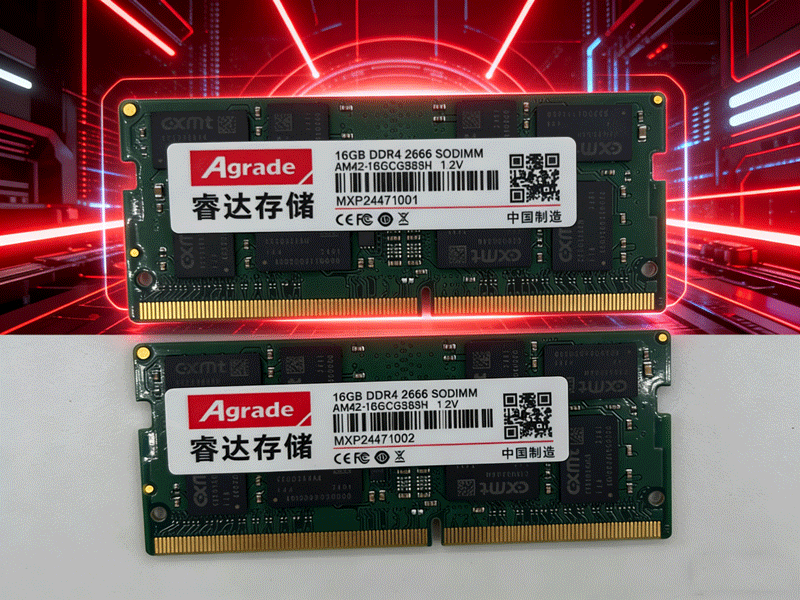
First, research your laptop’s memory limitations. Check the manufacturer’s website or user manual to confirm three key details: number of memory slots, maximum supported capacity per slot, and supported memory generation (DDR3, DDR4). Many old laptops have only one memory slot or soldered memory (non-upgradable), so this step is critical. For example, a 2018 laptop with Intel 8th Gen processor likely supports DDR4-2400/2666 modules, with a maximum capacity of 16GB (8GB per slot).
Choose the right memory module. For old laptops, prioritize compatibility over performance. If your laptop supports DDR3, opt for DDR3L (low-voltage) modules if possible— they are more energy-efficient and compatible with most older motherboards. For capacity, upgrade to the maximum supported by the laptop; 16GB is ideal for multitasking, while 8GB is sufficient for basic use (web browsing, office work). Avoid high-frequency modules, as old motherboards will downclock them to the maximum supported frequency (e.g., a DDR4-3200 module will run at 2400MHz on a laptop that only supports 2400MHz).
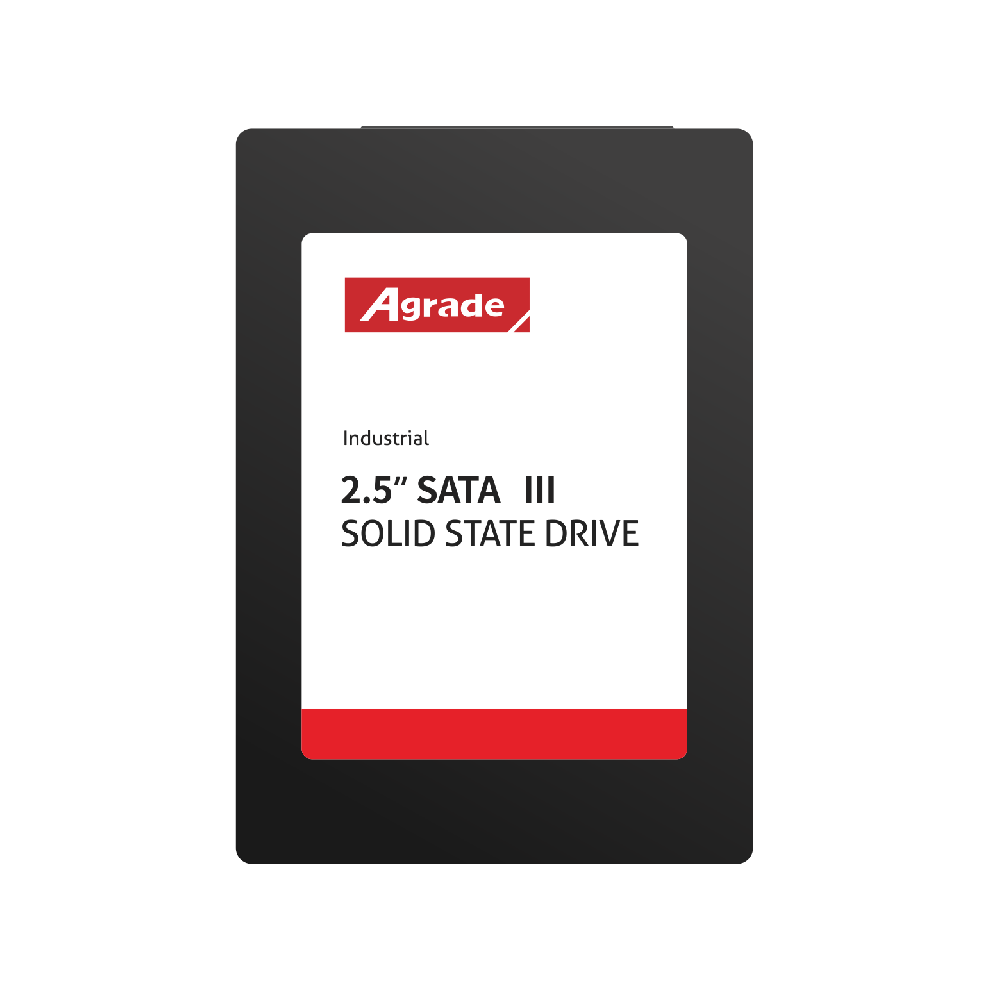
Consider dual-channel memory if your laptop has two slots. For example, upgrading from 4GB single-channel to 8GB dual-channel (2x4GB) can provide a 15-20% performance boost, especially for laptops with integrated graphics. Use identical modules (same brand, capacity, frequency) for optimal compatibility. If only one slot is available, replace the existing module with a larger one (e.g., 4GB to 16GB) and pair the upgrade with an SSD (solid-state drive) for even better performance— SSDs address storage bottlenecks, while memory addresses multitasking bottlenecks.
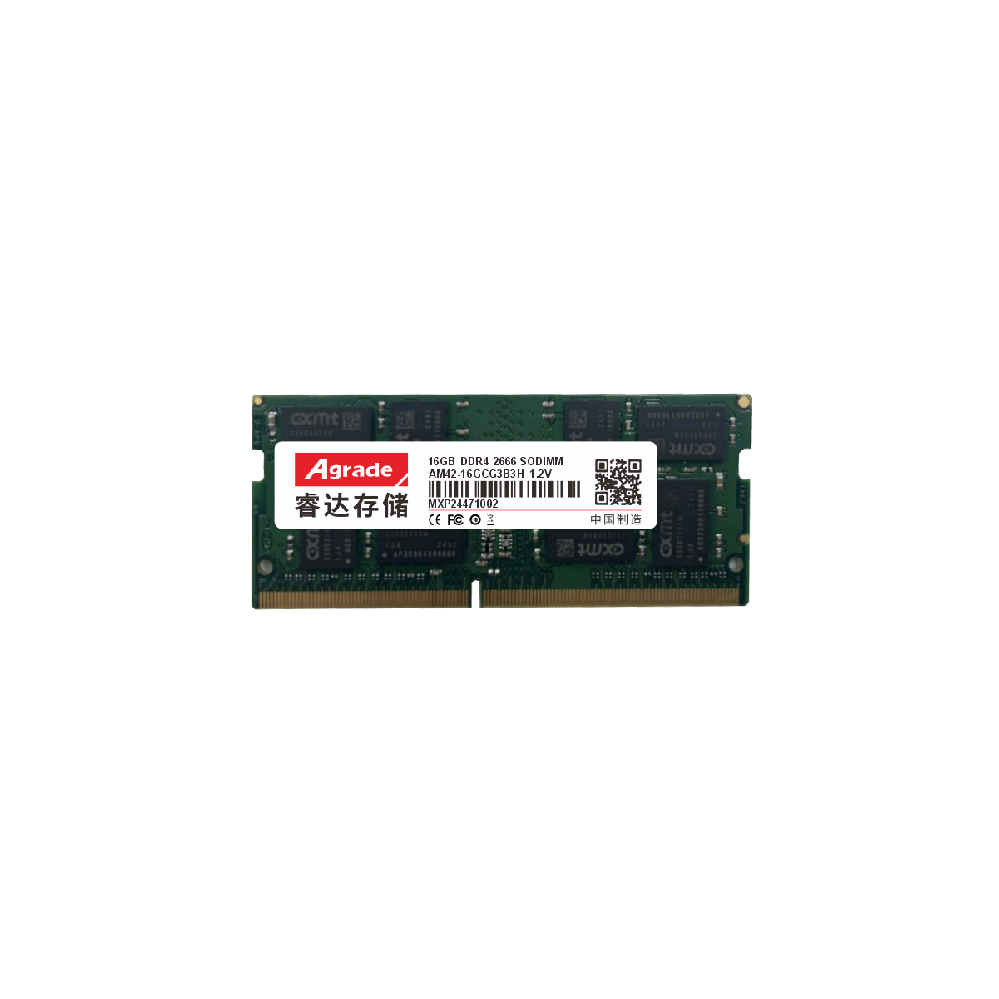
Install the module correctly. Power off the laptop, remove the battery and power adapter, and discharge static. Open the bottom cover (use a screwdriver set for laptops) and locate the memory slots. Insert the module at a 45-degree angle, aligning the notch with the slot, and press down until the clips lock. Replace the cover, battery, and adapter, then power on the laptop. Verify the upgrade: on Windows, go to “Settings” > “System” > “About” to check memory capacity; on macOS, use “About This Mac”. Reinstall the operating system if the laptop does not recognize the new memory (rare, but possible for very old systems), and update the motherboard firmware to ensure compatibility.

-
Products
Advantages
-
Solutions
-
News
About us
-
Contact us
Tel:+86 19926658803
Whatsapp:+86 19926658803
lianle1210@163.com
Address: 30CF, Caihong Building, Caihong Road, Futian District, Shenzhen City, Guangdong Province, China



Friendly Links:
