












News


 电商部
电商部  2026-01-15 16:55:47
 Common Issues with Desktop Computer Memory Modules and How to Fix Them
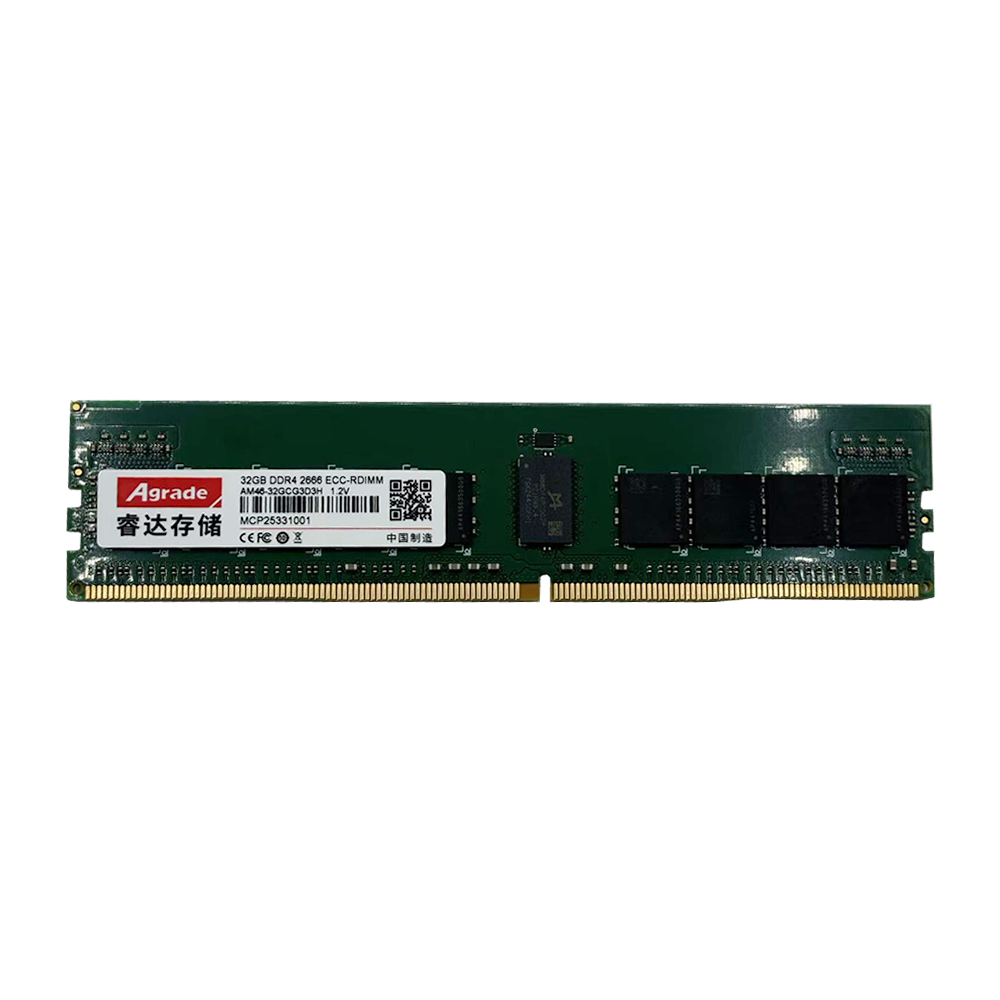
Desktop computer memory modules are essential components that directly impact system performance, but they can experience issues that disrupt workflow and cause frustration. One of the most common problems is memory errors, which manifest as system crashes, blue screens of death (BSOD), random reboots, or applications freezing unexpectedly. These errors are often caused by faulty modules, loose connections between the module and DIMM slot, incompatible hardware combinations, or even overheating. To diagnose memory errors accurately, use built-in tools like Windows Memory Diagnostic, which scans for issues and provides a detailed report, or third-party software like MemTest86, which offers more thorough testing by booting independently of the operating system. Running these tests can help pinpoint whether the issue stems from the memory module itself or another component.
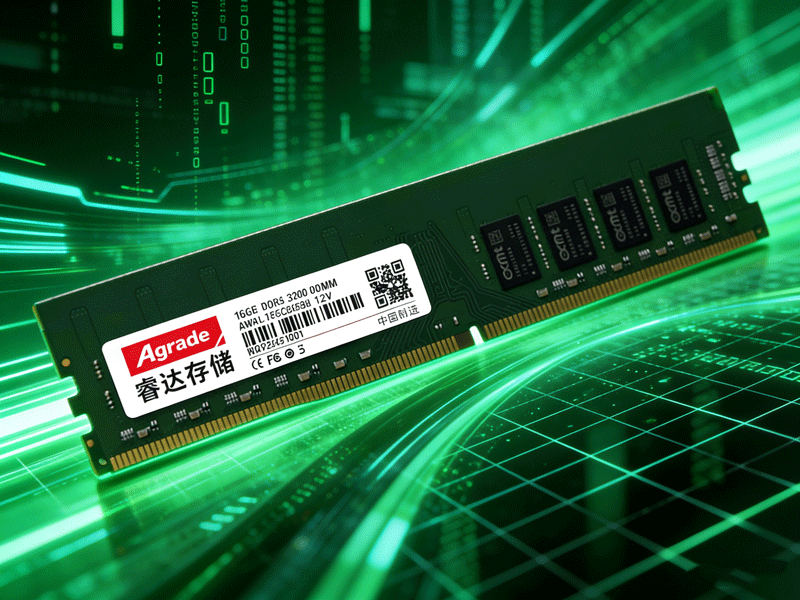
If memory errors are detected, the first step is to check the physical connections. Turn off your computer, unplug the power cord, and open the case to access the motherboard. Carefully remove the memory modules by pressing down on the plastic clips on either side of each DIMM slot—this will release the module, allowing you to pull it out gently. Inspect the gold contacts on the bottom of the module for dust, corrosion, or damage; if dirty, use a soft, dry cloth to wipe them clean. Reinsert the modules firmly into the DIMM slots, ensuring they click into place and the clips lock securely. If the issue persists, test each module individually by inserting one module at a time and running the diagnostic tool again. This process of elimination will help identify if a specific module is faulty. Faulty modules should be replaced with compatible ones from a reputable brand, as using damaged modules can lead to further system issues.
Another common issue is insufficient memory, which leads to slow system performance, lagging applications, and difficulty multitasking—especially when running multiple memory-heavy programs like web browsers with dozens of tabs, video editing software, and gaming clients simultaneously. This problem is easily resolved by upgrading the desktop computer memory module capacity, but proper planning is essential. Before upgrading, check your motherboard’s maximum supported memory capacity and type (DDR4 or DDR5) using the manufacturer’s manual or online specifications. For example, if your motherboard supports up to 64GB of DDR4 memory, you can add more modules to reach this limit, but mixing different capacities or speeds may cause instability. Additionally, ensure that the new modules match the existing ones in terms of speed, latency, and brand if possible, as this ensures optimal performance and compatibility with dual-channel or quad-channel modes.

-
Products
Advantages
-
Solutions
-
News
About us
-
Contact us
Tel:+86 19926658803
Whatsapp:+86 19926658803
lianle1210@163.com
Address: 30CF, Caihong Building, Caihong Road, Futian District, Shenzhen City, Guangdong Province, China



Friendly Links:
